Customizing Your LazyVim Setup for Personal Preferences (Part 2)
Table Of Contents
Welcome back, my friends!
I know, I know, it’s been a while since we last delved into the wonderful world of LazyVim customization.
In Part 1, we laid the groundwork with LazyVim, establishing a solid foundation for our Neovim journey. Now, it’s time to take things to the next level – personalization!
In the next section, I want to express my gratitude to Takuya Matsuyama, who is a true inspiration to me. I have learned a great deal from his work, and I am deeply appreciative of his contributions to the field.
And now, let’s start cowboy 🤠🤠🤠.
Folder Structure Tree of LazyVim
Before starting to customize anything, we need to quickly look through the default File Structure Diagram of Lazy.vim to get an overview of it. For more information: General Settings
~/.config/nvim
├── lua
│ ├── config
│ │ ├── autocmds.lua
│ │ ├── keymaps.lua
│ │ ├── lazy.lua
│ │ └── options.lua
│ └── plugins
│ ├── spec1.lua
│ ├── \*\*
│ └── spec2.lua
└── init.toml- autocmds.lua (auto commands): are used to automatically execute specific
commandsorfunctionsin response to certain events in the editors.
Greatly enhance your Vim workflow, it very wonderful 😍.
- keymaps (key mappings): are configurations that define custom keyboard shortcuts. These mappings allow users to bind specific keys or combinations of keys to Vim
commands,functions, orscripts, … thereby streamlining their workflow and making repetitive tasks quicker and easier.
Suppose you don’t know about Key Mappings. In that case, I think this is a useful blog to get started with: Basic Vim Mapping. Thanks for the great post! {% embed https://dev.to/iggredible %}
-
lazy.lua: this is a place to set the default configuration of the Lazy.vim
-
options.lua (optional): you can set anything to custom your Vim if you want like:
autoindent,smartindent,hlsearch,showcmd,shiftwidth, … I will show my config later 🫣
Overview of the bullet points
Now, we are an overview of the bullet points I will configure in the next section:
- Theme:
- Solarized Osaka (I’m a big fan of Takuya Matsuyama)
- Keymaps:
- keymaps
- autocmds
- options
- Plugins: - ColorScheme (at above): - craftzdog/solarized-osaka.nvim - coding: - smjonas/inc-rename.nvim - ThePrimeagen/refactoring.nvim (The Refactoring library based off the Refactoring book by Martin Fowler) - echasnovski/mini.bracketed - monaqa/dial.nvim - danymat/neogen - simrat39/symbols-outline.nvim (A tree like view for symbols in Neovim using the Language Server Protocol. Supports all your favourite languages.) - nvim-cmp (A completion engine plugin for neovim written in
Lua. Completion sources are installed from external repositories and “sourced”.) - kylechui/nvim-surround (Surround selections, stylishly 😎) - lsp: - neovim/nvim-lspconfig - williamboman/mason.nvim (Portable package manager for Neovim that runs everywhere Neovim runs. Easily install and manageLSP servers,DAP servers,linters, andformatters.) - treesitters: - nvim-treesitter/nvim-treesitter (to provide a simple and easy way to use the interface fortree-sitterin Neovim and to provide some basic functionality such as highlighting based on it) - nvim-treesitter/playground (View treesitter information directly in Neovim!) - nvim-treesitter/nvim-treesitter-context - ui: - lukas-reineke/indent-blankline.nvim - folke/noice.nvim (Noice improves the UI formessages,cmdlineand thepopupmenu.) - rcarriga/nvim-notify (A fancy, configurable, notification manager for NeoVim) - echasnovski/mini.animate (has an extra that enables animations) - [b0o/incline.nvim] (https://github.com/b0o/incline.nvim) (When editing many files in a singletabpage, you can’t quickly know which file is opened in thetabpage. That’s because lualine’sglobalstatusoption is set tofalsein LazyVim.) - folke/zen-mode.nvim - nvimdev/dashboard-nvim - editors: - folke/flash.nvim - echasnovski/mini.hipatterns - dinhhuy258/git.nvim - telescope.nvim (It is an extendable _fuzzy finder _over lists.)
As you configure each plugin, it’s a good idea to save your changes and restart nvim quickly. This helps you catch any errors right away and makes troubleshooting smoother down the line. Think of it like a mini test drive after each tweak! 🤠🤠🤠
Solarized Osaka theme:
To change your theme create a file like colorscheme.lua
Create: lua/plugins/colorscheme.lua and config:
return {
  {
    "craftzdog/solarized-osaka.nvim",
    branch = "osaka",
    lazy = true,
    priority = 1000,
    opts = function()
      return {
        transparent = true,
      }
    end,
  },
}
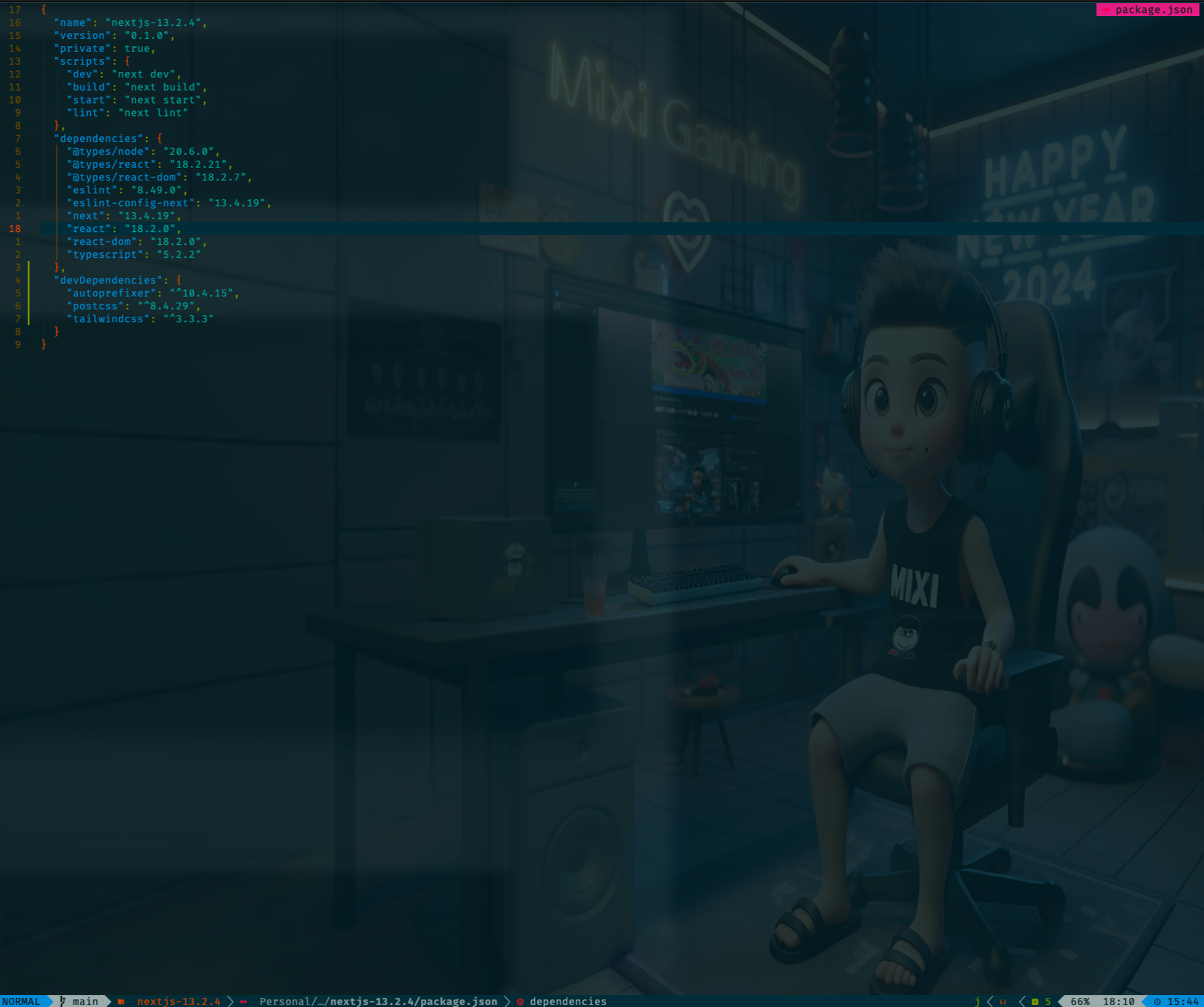
After config, you restart and see the theme:
Awesome 🥸🥸🥸!!!
Key Mappings
The LazyVim has already configured many things for me now, but I added some customizations like those in the file: lua/config/keymaps.lua
local keymap = vim.keymap
local opts = { noremap = true, silent = true }

keymap.set("n", "x", '"_x')

-- Increment/decrement
keymap.set("n", "+", "<C-a>")
keymap.set("n", "-", "<C-x>")

-- Delete a word backwards
keymap.set("n", "dw", 'vb"_d')

-- Select all
keymap.set("n", "<C-a>", "gg<S-v>G")

-- Save with root permission (not working for now)
--vim.api.nvim_create_user_command('W', 'w !sudo tee > /dev/null %', {})

-- Disable continuations
keymap.set("n", "<Leader>o", "o<Esc>^Da", opts)
keymap.set("n", "<Leader>O", "O<Esc>^Da", opts)

-- Jumplist
keymap.set("n", "<C-m>", "<C-i>", opts)

-- New tab
keymap.set("n", "te", ":tabedit")
keymap.set("n", "<tab>", ":tabnext<Return>", opts)
keymap.set("n", "<s-tab>", ":tabprev<Return>", opts)
-- Split window
keymap.set("n", "ss", ":split<Return>", opts)
keymap.set("n", "sv", ":vsplit<Return>", opts)
-- Move window
keymap.set("n", "sh", "<C-w>h")
keymap.set("n", "sk", "<C-w>k")
keymap.set("n", "sj", "<C-w>j")
keymap.set("n", "sl", "<C-w>l")

-- Resize window
keymap.set("n", "<C-w><left>", "<C-w><")
keymap.set("n", "<C-w><right>", "<C-w>>")
keymap.set("n", "<C-w><up>", "<C-w>+")
keymap.set("n", "<C-w><down>", "<C-w>-")

-- Pick a buffer
keymap.set("n", "<Leader>1", "<Cmd>BufferLineGoToBuffer 1<CR>", {})
keymap.set("n", "<Leader>2", "<Cmd>BufferLineGoToBuffer 2<CR>", {})
keymap.set("n", "<Leader>3", "<Cmd>BufferLineGoToBuffer 3<CR>", {})
keymap.set("n", "<Leader>4", "<Cmd>BufferLineGoToBuffer 4<CR>", {})
keymap.set("n", "<Leader>5", "<Cmd>BufferLineGoToBuffer 5<CR>", {})
keymap.set("n", "<Leader>6", "<Cmd>BufferLineGoToBuffer 6<CR>", {})
keymap.set("n", "<Leader>9", "<Cmd>BufferLineGoToBuffer -1<CR>", {})

-- Moving text
-- Move text up and down
keymap.set("n", "<C-Down>", "<Esc>:m .+1<CR>", opts)
keymap.set("n", "<C-Up>", "<Esc>:m .-2<CR>", opts)
keymap.set("v", "<C-Down>", ":m .+1<CR>", opts)
keymap.set("v", "<C-Up>", ":m .-2<CR>", opts)
keymap.set("x", "<C-Down>", ":move '>+1<CR>gv-gv", opts)
keymap.set("x", "<C-Up>", ":move '<-2<CR>gv-gv", opts)

-- Diagnostics
keymap.set("n", "<C-j>", function()
  vim.diagnostic.goto_next()
end, opts)
Auto Commands
lua/config/autocmds.lua
I don’t want to show concealing when using json and markdown files and turn off paste mode when leaving insert. So, I set conceallevel to 0 for json files and turned off paste mode like below.
If you want to use them, you can skip this config file 🙄
-- Turn off paste mode when leaving insert
vim.api.nvim_create_autocmd("InsertLeave", {
  pattern = "*",
  command = "set nopaste",
})

-- Disable the concealing in some file formats
-- The default conceallevel is 3 in LazyVim
vim.api.nvim_create_autocmd("FileType", {
  pattern = { "json", "jsonc", "markdown" },
  callback = function()
    vim.opt.conceallevel = 0
  end,
})
Awesome 🥸🥸🥸!!!
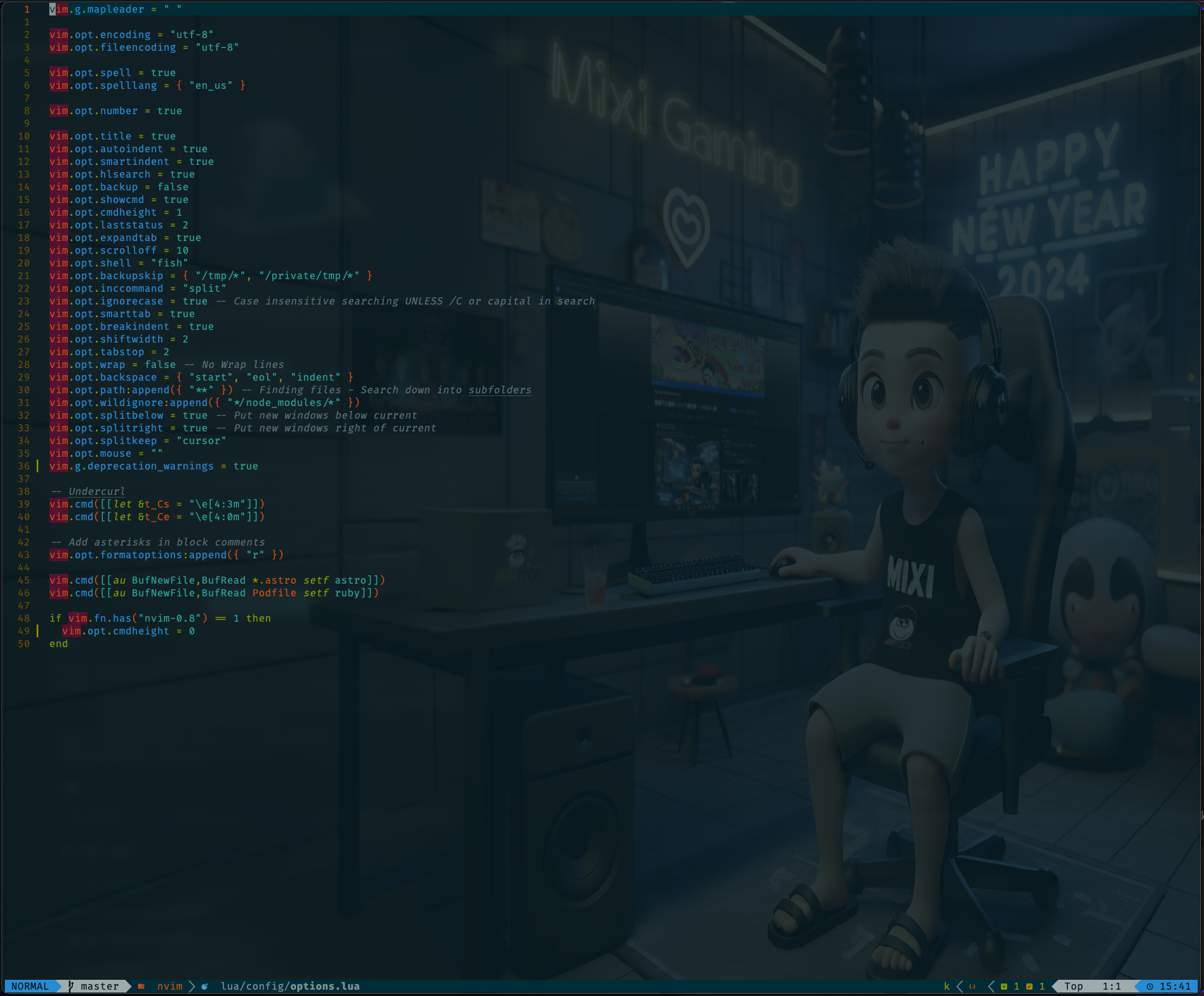
Options Configuration Vim
I have some config for default Vim, it’s only just an old config for normal nvim in the past: lua/config/options.lua. I will omit to explain this file 🫣
vim.g.mapleader = " "

vim.opt.encoding = "utf-8"
vim.opt.fileencoding = "utf-8"

vim.opt.spell = true
vim.opt.spelllang = { "en_us" }

vim.opt.number = true

vim.opt.title = true
vim.opt.autoindent = true
vim.opt.smartindent = true
vim.opt.hlsearch = true
vim.opt.backup = false
vim.opt.showcmd = true
vim.opt.cmdheight = 1
vim.opt.laststatus = 2
vim.opt.expandtab = true
vim.opt.scrolloff = 10
vim.opt.shell = "fish"
vim.opt.backupskip = { "/tmp/*", "/private/tmp/*" }
vim.opt.inccommand = "split"
vim.opt.ignorecase = true -- Case insensitive searching UNLESS /C or capital in search
vim.opt.smarttab = true
vim.opt.breakindent = true
vim.opt.shiftwidth = 2
vim.opt.tabstop = 2
vim.opt.wrap = false -- No Wrap lines
vim.opt.backspace = { "start", "eol", "indent" }
vim.opt.path:append({ "**" }) -- Finding files - Search down into subfolders
vim.opt.wildignore:append({ "*/node_modules/*" })
vim.opt.splitbelow = true -- Put new windows below current
vim.opt.splitright = true -- Put new windows right of current
vim.opt.splitkeep = "cursor"
vim.opt.mouse = ""
vim.g.deprecation_warnings = true

-- Undercurl
vim.cmd([[let &t_Cs = "\e[4:3m"]])
vim.cmd([[let &t_Ce = "\e[4:0m"]])

-- Add asterisks in block comments
vim.opt.formatoptions:append({ "r" })

vim.cmd([[au BufNewFile,BufRead *.astro setf astro]])
vim.cmd([[au BufNewFile,BufRead Podfile setf ruby]])

if vim.fn.has("nvim-0.8") == 1 then
  vim.opt.cmdheight = 0
end
Honestly, I don’t want this post to be too long, so I’ll cover the Plugin configuration section in the next article.
My dotfiles configurations:
{% embed https://github.com/crafts69guy/.dotfiles %}
{% embed https://dev.to/crafts69guy %}
{% cta https://x.com/crafts69guy %}🚀 Follow me on X(Twitter){% endcta%}
{% cta https://www.linkedin.com/in/cuong-cao-ngoc-792992229/ %}🚀 Connect with me on Linkedin{% endcta %}
{% cta https://github.com/crafts69guy %}🚀 Checkout my GitHub{% endcta %}
See you soon, comrades, in the next part.
Thanks for reading!